

When the EHR goes down,
care does not.
Spare Tire is an EHR downtime resilience and clinical continuity solution. It runs continuously on Spare Tire's external cloud, separate from your hospital network, holding a read-only copy of your records. When downtime begins, clinicians are redirected to Spare Tire and keep working: patient list, chart, notes, vitals, orders, MAR, results, ADT and bed status. When the EHR returns, everything created during downtime is pushed back over HL7.
app.sparetire.io for the clinical team. admin.sparetire.io for administrators.
Passive: read-only sync from the live EHR. Active: downtime operation, then Start Restore.
Provider, Nurse, Lab, Pharmacy, Radiology, Registration, Therapist. Plus custom roles you build.
What is in this guide
Spare Tire runs on Spare Tire's external cloud, separate from your hospital network. Reach it on an IT-cleared incident device, not your everyday workstation. Keep this guide with the downtime kit.
Two addresses, one sign-in. Know both before downtime.
Clinicians use the application. Administrators use the administrator panel. Both sign in by phone number with a code sent by SMS, so the credentials in your downtime kit are a phone number and a role password, not an email.
Spare Tire is not on your network, so it is not down when your network is. That is the point. It is also why the incident device must be IT-cleared and reachable from outside the hospital LAN.
The patient list and the MAR are available on mobile, so a nurse with a cleared phone can check what is due without a workstation.
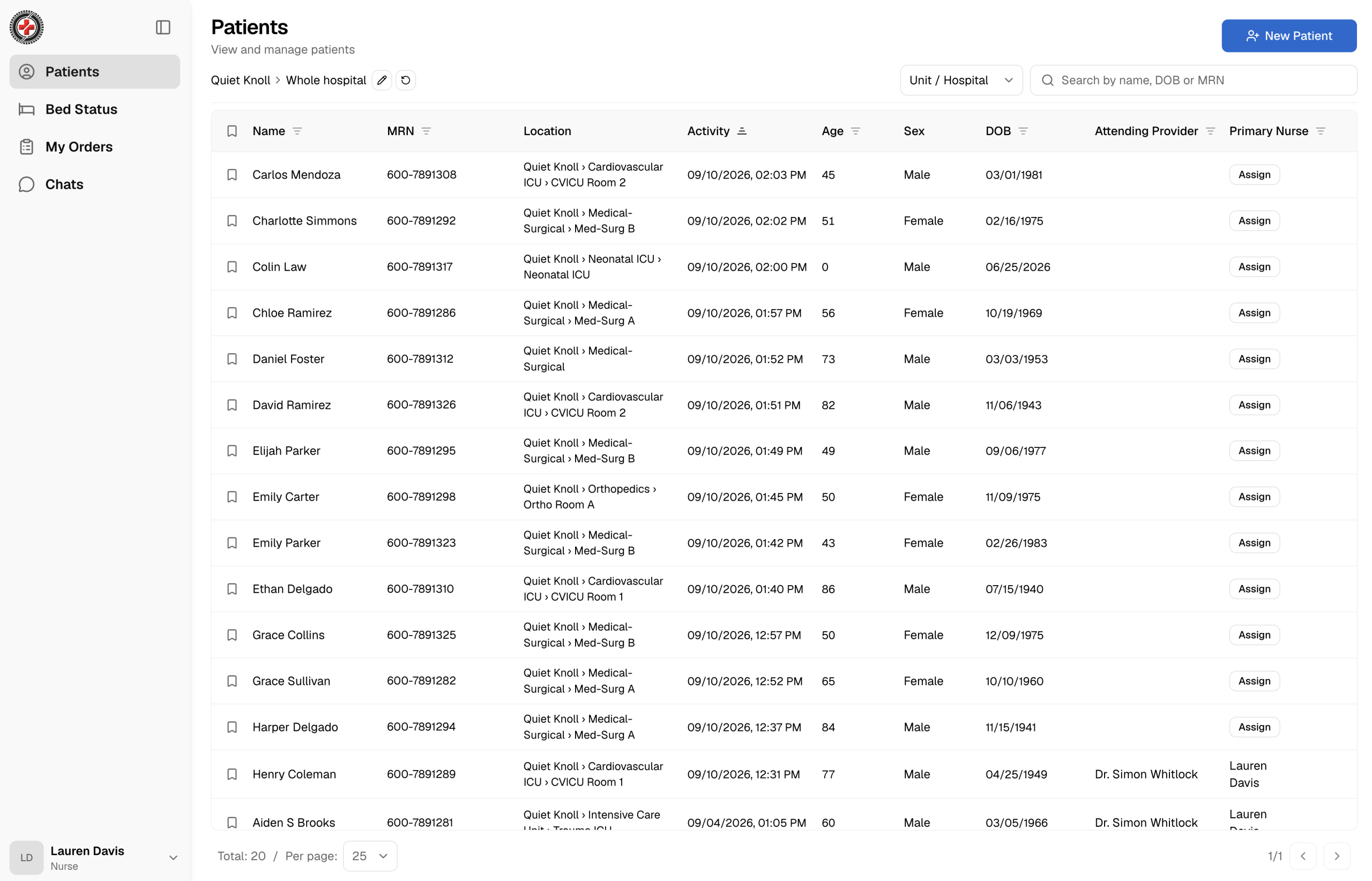
Find the patient. Open the chart. Everything is there.
The first thing a clinician sees is the patient list, pre-loaded from the live EHR while Spare Tire was in Passive mode. Search by name or MRN, open the chart, and the overview shows the critical information at once: allergies, medications, laboratory results, radiology, and the patient's current location.
| Task | Who can perform it |
|---|---|
| Create or find a patient | Registration, nurse, provider |
| Check in | Registration, nurse, provider |
| Notes | Nurse (nursing notes only), provider |
| Vitals | Nurse, provider |
| Orders | Provider (nurse can create general and lab orders) |
| Fill orders | Nurse, lab, pharmacy, radiology, provider |
| Admit | Registration, nurse, provider |
| Transfer / assign bed | Registration, nurse, provider |
| Discharge | Registration, nurse, provider |
The full permission reference is on pages 10 and 11.
The chart, tab by tab
Overview
Allergies, active medications, latest labs and radiology, problems, and current location. Read this first on every patient.
Notes · Vitals · Diagnosis
Clinical documentation. Page 4.
Orders · MAR · Results
The ordering workflow, the medication administration record, and uploaded results. Pages 5 to 6.
Visit management · Visit summary
Admit, discharge, transfer, bed assignment, take-home instructions and sign-off. Page 7.
Select New Patient and enter name, date of birth, gender, marital status, address, city, phone, email, Medical Record Number (MRN) and primary care provider. Registration, nurses and providers can create patients.
If you need a chart your role does not normally reach, Break the Glass opens it and records that you did. Every break-the-glass access is logged for review after downtime.
Document the way you always do, in a system that stays up.
The downtime documentation loop
Everything created in Active mode is queued for restore: encounters, orders, notes, lab results and more. Structured entries (a note type, an ICD-10 code, a signed vital) return to the EHR as records. Free text returns as free text. Use the templates.
Spare Tire includes in-app Chats so the care team can coordinate inside the system during downtime instead of over personal phones.
Every order placed and worked from the Orders tab.
Select New Order and choose the type. The type sets the track the order follows: General, Lab, Medication, Procedure, or Radiology. For a medication order, set the priority, choose scheduled, on-demand or continuous, and pick a frequency from the presets. If the order conflicts with a recorded allergy, a warning appears before you sign.
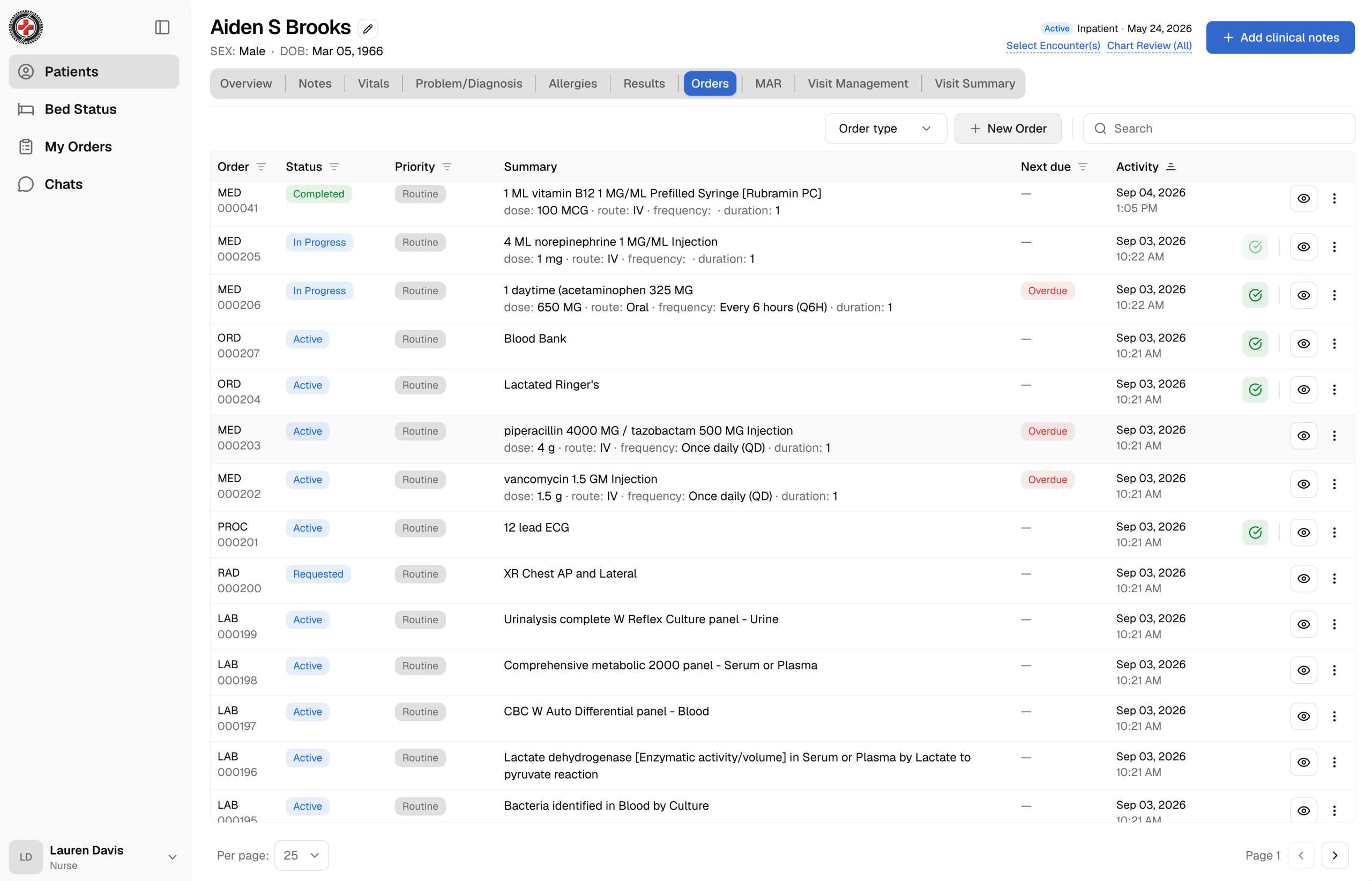
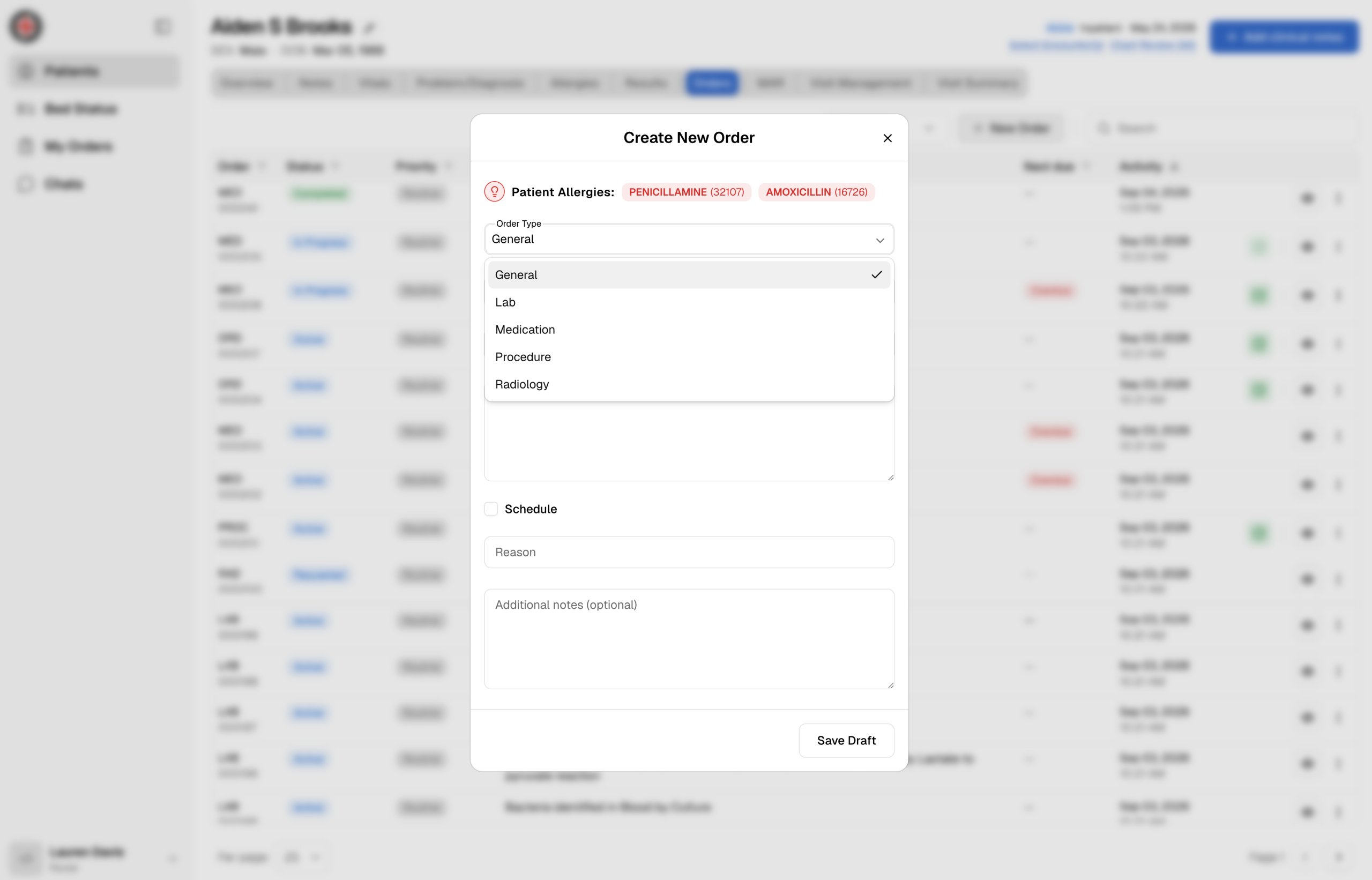
Three tracks, step by step.
| Medication | |
|---|---|
| Enter | Orders tab → New Order → Medication. Provider |
| Verify / dispense | Pharmacy dashboard → open → verify. Pharmacy |
| Administer | MAR tab → medication due (highlighted in the date range) → confirm → sign. Nurse or provider |
| Complete | Orders tab → mark complete. Nurse or provider |
| Lab | |
|---|---|
| Enter | Orders tab → New Order → Lab. Provider |
| Collect specimen | Orders tab → Collect Specimen. Lab |
| Process specimen | Orders tab → Process Specimen. Lab |
| Complete and upload | Orders tab → check mark → upload the result PDF. Appears under Results. Lab |
| Radiology | |
|---|---|
| Enter | Orders tab → New Order → Radiology. Provider |
| Run image | Orders tab → Start Imaging (box left of View). Radiology |
| Send for read | Orders tab → Send for Read (same place). Radiology |
| Complete and upload | Orders tab → check mark → upload the PDF. The impression appears under Results. Radiology |
Signed orders route immediately to the department that works them: medication orders to the pharmacy dashboard, lab orders to the lab, radiology orders to the radiology dashboard. Nobody carries paper between floors. Each department's My Orders view shows what is waiting.
Thirteen orders, one signature. Then a trail of who did what.
One medication order, end to end.
Spare Tire keeps the full history of every order: who created and signed it, which pharmacist verified it, who administered the medication, and who completed the order. That is a clear, auditable clinical trail across the whole downtime period, and it goes back to the EHR with the record on restore.
Pharmacy, lab and radiology each sign in to their own view. Pharmacy sees medication orders waiting for review. Lab sees orders to collect and process. Radiology sees imaging to start and reads to send. The clinical dashboard reflects each status change as it happens.
Admit, transfer, discharge, and know where every bed is.
Transfer a patient
A patient in the ICU needs a medical-surgical bed. Open Visit management, select the new unit, assign the room and bed (for example Room A, Bed 4), and complete the transfer. The patient's location updates immediately, in the chart and on the bed board.
Find an available bed
Open Bed Status for real-time occupancy across the facility. Beds are listed by parent location, type and room, with status available, occupied or reserved. Search for a patient to see their current bed; filter to find open beds without walking the wards.
Discharge with instructions
From the visit summary, review the visit information, select the appropriate take-home instructions, and complete the required sign-off. Registration, nurses and providers can discharge.
The bed board is built from the facility structure your administrator maintains: organization network, region, facility, point of care, room, bed. If a unit is missing from the tree, it is missing from the board. Page 8.
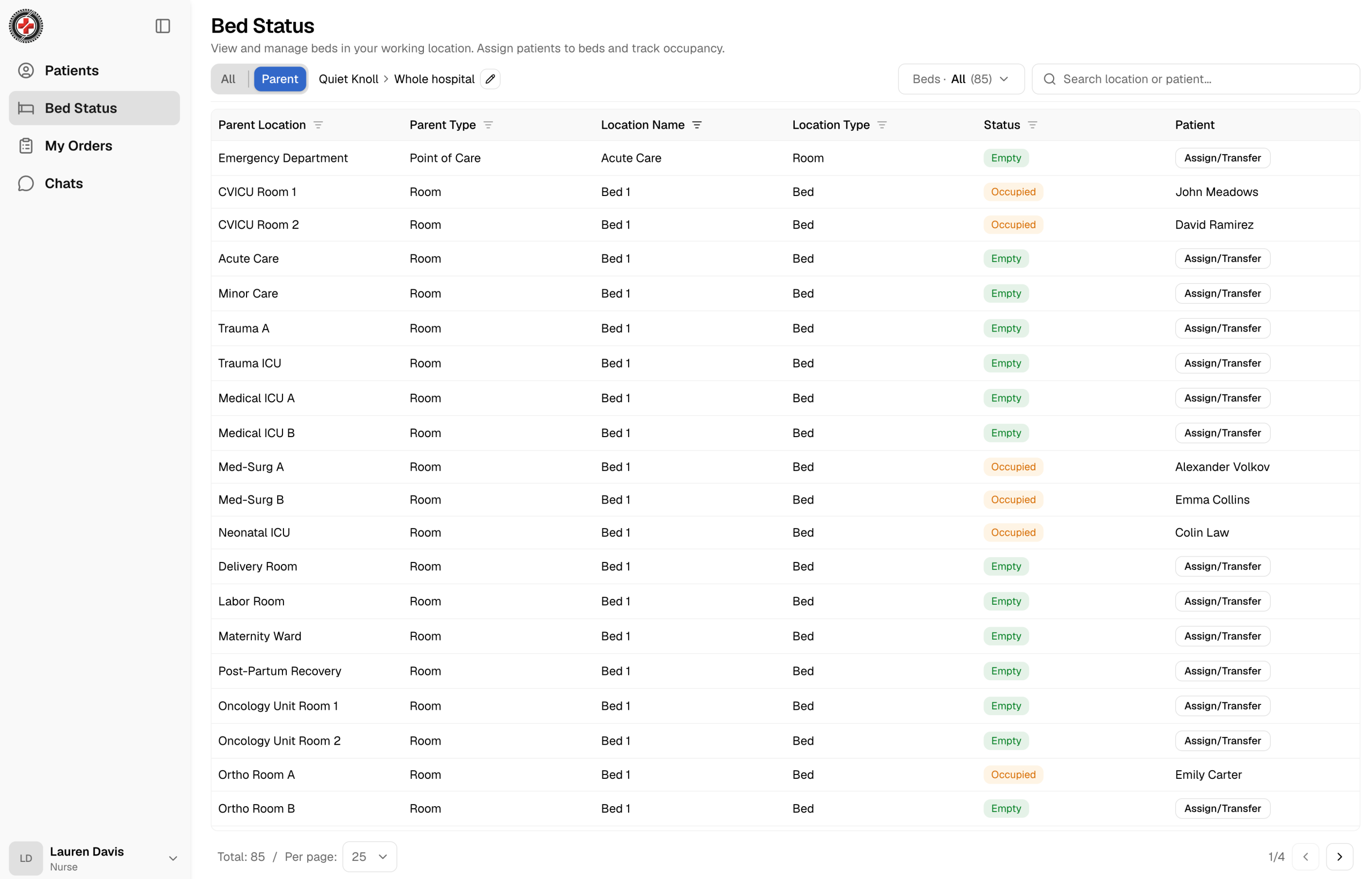
| ADT action | Who | Where |
|---|---|---|
| Check in / create encounter | Registration, nurse, provider | Patient chart |
| Admit | Registration, nurse, provider | Visit management |
| Transfer / assign bed | Registration, nurse, provider | Visit management, Bed Status |
| Unassign / change patient on a bed | Registration, nurse, provider | Bed Status |
| Discharge with take-home instructions | Registration, nurse, provider | Visit summary |
Available
Open bed, ready to assign.
Occupied
Assigned to a patient. Shows the patient and the attending.
Reserved
Held for an incoming patient. Not open to assignment.
Four things to load, in this order.
Spare Tire is ready in under a minute when the data is already there. Load users, administrators, the facility structure and the patient census while the EHR is healthy, then keep them current. The video calls this out: the facility structure can be imported from the primary system or maintained by hand.
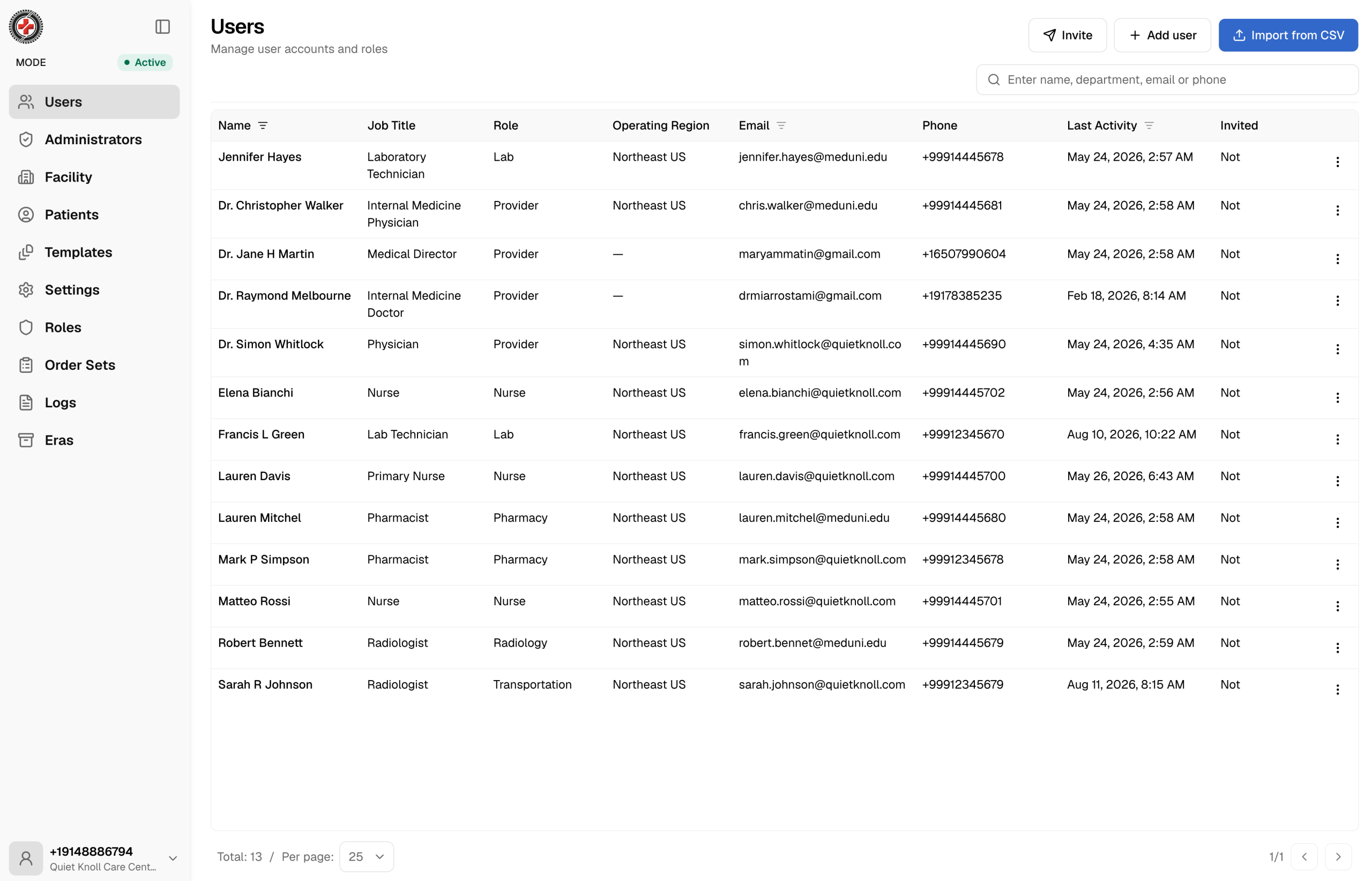
Add users, one at a time or by CSV
Add User: name, job title, department, email, phone, and whether to send the invitation automatically. Import from CSV: download the template, fill it in, upload. Every user is assigned one role; the role sets what they see and do.
Add and manage administrators
Add, invite and manage administrator accounts. Each carries a role such as super-admin and a status showing whether the invitation is pending or active.
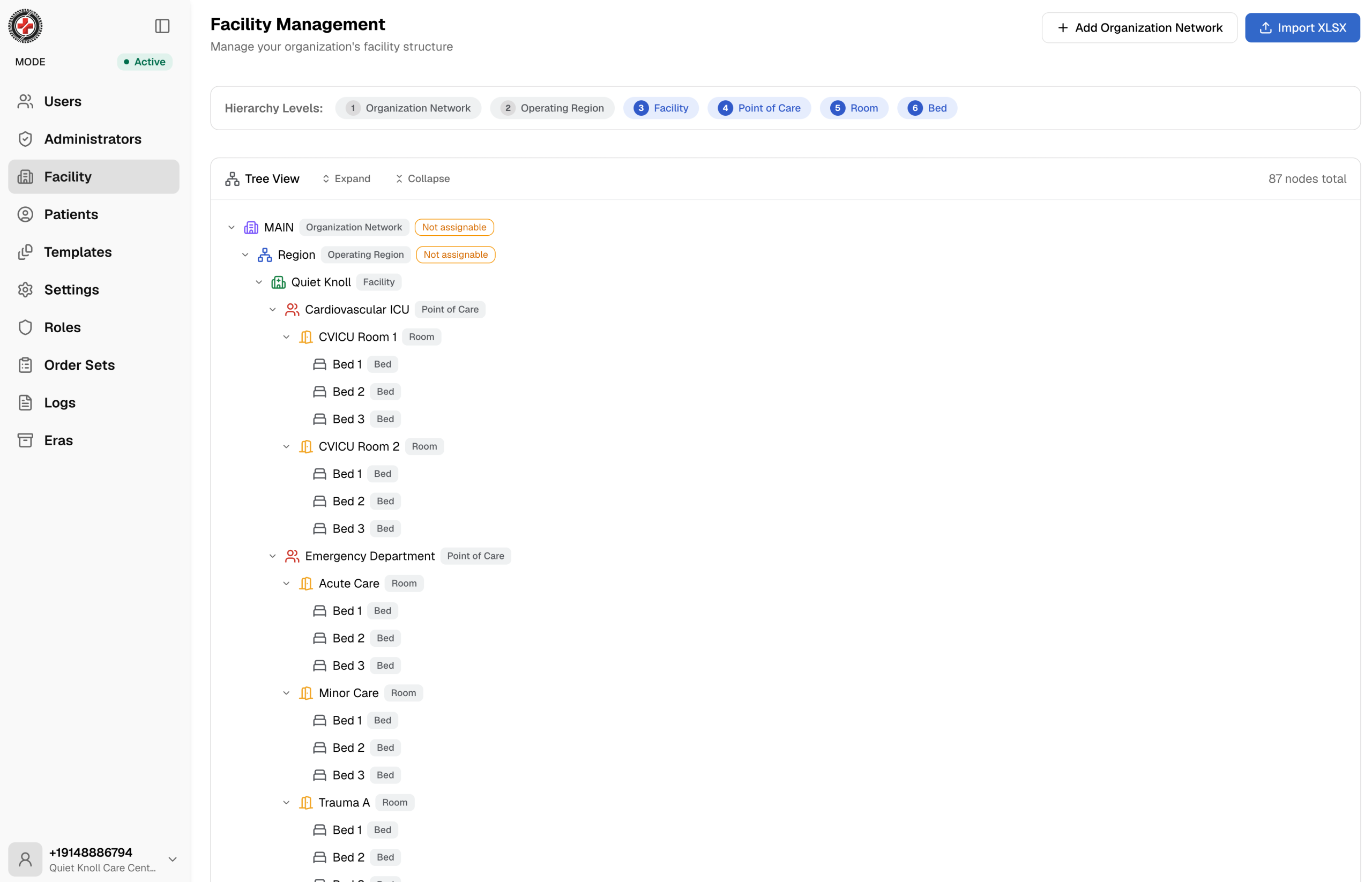
Build or import the facility structure
Six levels: organization network, operating region, facility, point of care, room, bed. Build it in the tree view or load it with Import XLSX. The clinical bed board reads from this during downtime, so keep it accurate.
Pre-load the patient census
Upload a CSV of patient information so records are ready the moment downtime begins. In Passive mode the census also syncs from the live EHR over HL7; the import is the fallback and the drill-day seed.
Passive until you need it. Active when you do.
Passive
Spare Tire holds a read-only copy of records synced from the live EHR over HL7. Clinicians do not work here. The census, orders and notes stay current in the background so nothing has to be rebuilt on the day.
Active
Spare Tire becomes the primary system clinicians work in. Inbound sync from the main EHR pauses. Clinicians create and update records directly. A confirmation appears once the platform is in Active (downtime) mode.
An authorized administrator moves the toggle
Spare Tire is always activated manually. Open the mode screen and move the toggle to Active. Use it for real downtime, and for drills and tabletop exercises.
Start Restore
When the EHR is back, select Start Restore. Spare Tire pushes everything created during downtime back to the primary EHR over HL7 and returns to read-only. The mode screen shows the local activity waiting to sync: encounters, orders, notes, lab results and more.
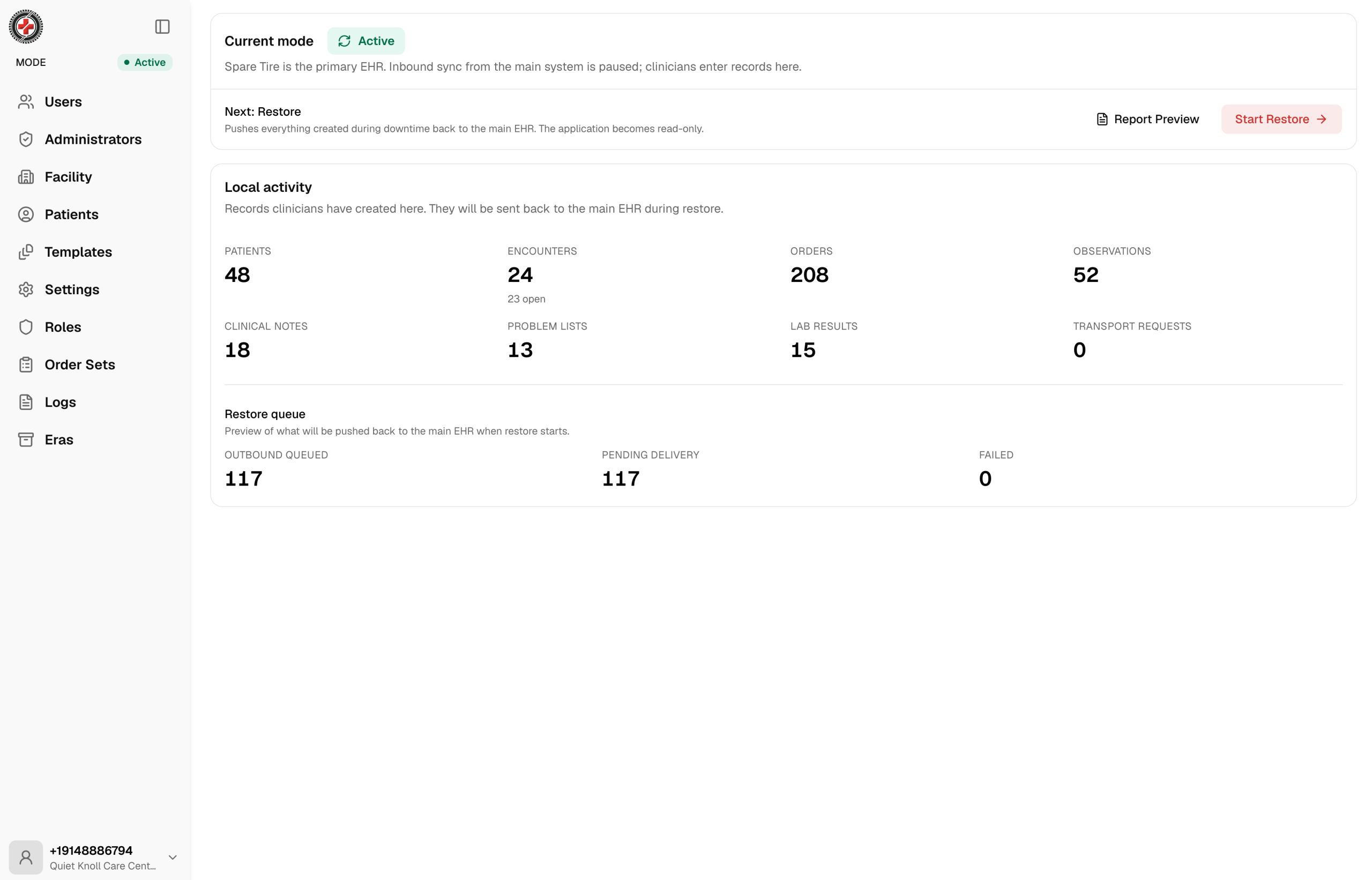
Clinical notes sync from the EMR. HL7 runs in dev, test and prod modes so you can rehearse the restore without touching production. After a restore, a sync-back summary report (delivered via MDM) shows what went back; failed messages can be retried or edited raw.
Use Active mode for drills and tabletop exercises, not only for emergencies. A drill in test HL7 mode exercises the whole loop: activate, work a patient through orders and the MAR, restore, read the sync-back report. The checklist is on page 12.
One role per account. The role decides everything.
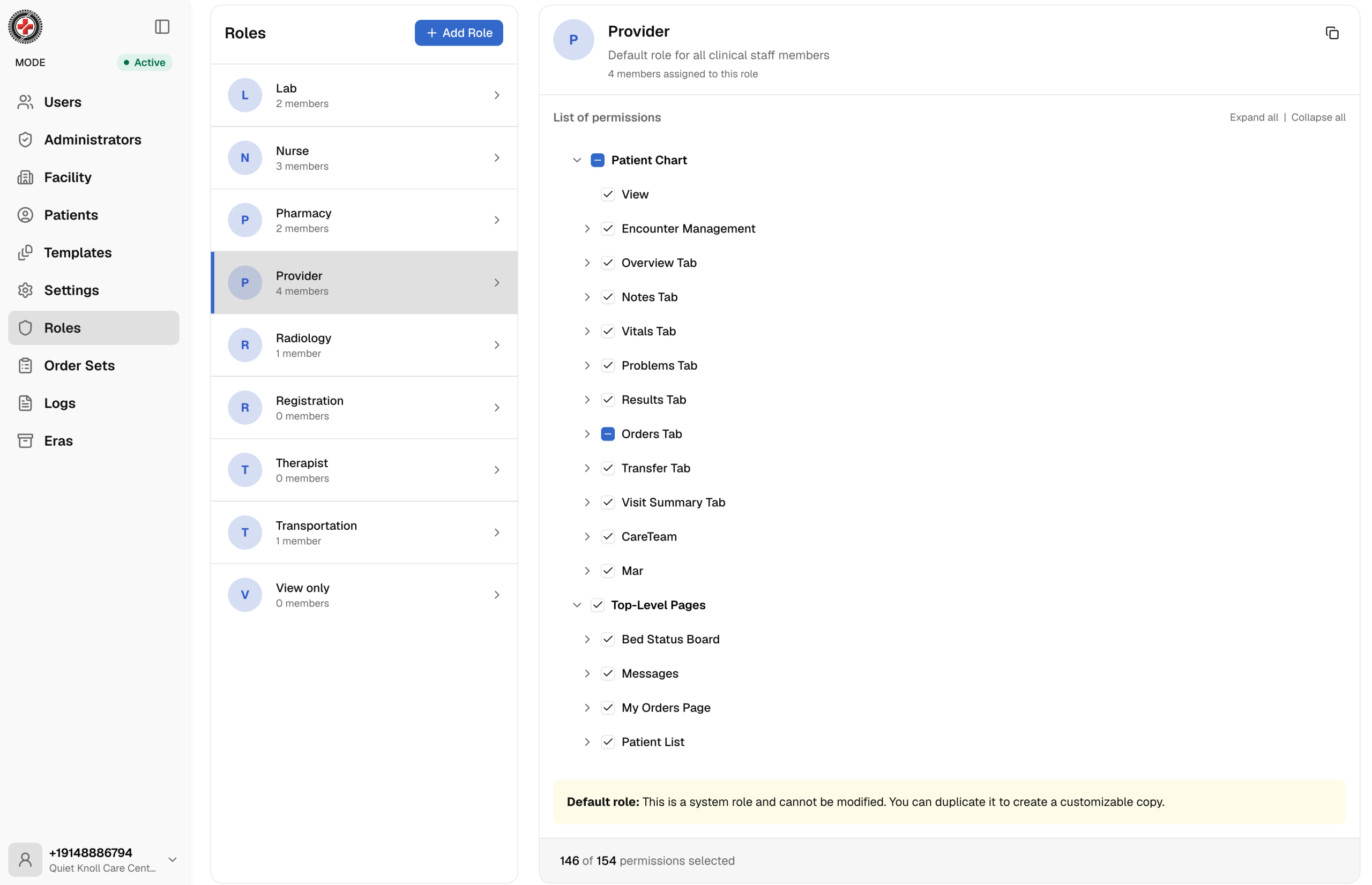
Open the Roles menu to review a role and the exact permissions it carries, out of 151 in the permission tree. The platform ships with predefined system roles. Administrators can also create custom roles: copy the Nurse role, name it Emergency Department Nurse, and adjust exactly which functions that role can reach.
| Capability | Prov. | Nurse | Lab | Pharm. | Rad. | Reg. |
|---|---|---|---|---|---|---|
| Register / create patient | ✓ | ✓ | — | — | ✓ | ✓ |
| Check-in and encounter | ✓ | ✓ | — | — | — | ✓ |
| Notes: create | ✓ | ✓¹ | — | — | — | — |
| Vitals: record | ✓ | ✓ | — | — | — | — |
| Problems: create / edit | ✓ | — | — | — | — | — |
| Orders: create | ✓ | ✓ | — | — | — | — |
| Medication: verify / dispense | — | — | — | ✓ | — | — |
| Medication: administer (MAR) | ✓ | ✓ | — | view | — | — |
| Radiology: imaging | — | — | — | — | ✓ | — |
| Results: upload | ✓ | — | ✓ | — | ✓ | — |
| Bed board: assign | ✓ | ✓ | — | — | — | ✓ |
| Patient list: view | ✓ | ✓ | ✓ | ✓ | ✓ | ✓ |
✓ full access view = view only — not available ¹ nursing notes only. The Therapist role follows the nurse pattern for documentation without ordering; confirm its tree in the Roles menu.
What each role can do, in full.
| Provider · 143 of 151 permissions | |
|---|---|
| Patient chart | Check-in; encounter management: change status, create |
| Overview | View; allergies: edit |
| Notes | View, open, print; create: consultation, discharge summary, H&P, imaging, lab report, nursing note, pathology, procedures, progress note |
| Vitals | View, record, sign |
| Problems | View, create, edit |
| Results | View, delete, upload, view PDF |
| Orders | General, lab, medication, procedure, radiology: view, cancel, create, edit, open details, sign, view history; carry out and complete where applicable |
| MAR | View, administer, hold, infusion, refuse, skip |
| Bed board | View, assign, change patient, unassign |
| Patient list | View, create, edit, follow |
| Nurse · 123 of 151 permissions | |
|---|---|
| Patient chart | Check-in; encounter management: change status, create |
| Notes | View, open, print; create: nursing note |
| Vitals | View, record, sign |
| Problems | View |
| Results | View, view PDF |
| Orders | General, lab, medication, procedure, radiology: view, cancel, create, edit, open details, view history; carry out and complete where applicable. No sign. |
| MAR | View, administer, hold, infusion, refuse, skip |
| Bed board | View, assign, change patient, unassign |
| Patient list | View, create, edit, follow |
| Lab · 36 of 151 permissions | |
|---|---|
| Overview | View; allergies: edit |
| Notes | View, open |
| Results | View, delete, upload, view PDF |
| Orders | Lab orders: view, cancel, open details, sign, view history |
| My orders | Lab: view, open details, open patient chart, view history |
| Patient list | View, follow |
| Pharmacy · 34 of 151 permissions | |
|---|---|
| Overview | View; allergies: edit |
| Results | View, view PDF |
| Orders | Medication orders: view, cancel, open details, reject, verify, view history |
| MAR | View |
| My orders | Medication: view, open details, open patient chart, view history |
| Patient list | View, follow |
| Radiology · 35 of 151 permissions | |
|---|---|
| Overview | View; allergies: edit |
| Results | View, delete, upload, view PDF |
| Orders | Radiology orders: view, cancel, open details, send for read, start imaging, view history |
| My orders | Radiology: view, open details, open patient chart, view history |
| Patient list | View, create, edit, follow |
| Registration · 48 of 151 permissions | |
|---|---|
| Patient chart | Register new patient; check-in; encounter management: change status, create |
| Overview | View; allergies |
| Visit management | Available |
| Bed board | View, assign, change patient, unassign |
| Patient list | View, create, edit, follow |
The downtime drill, in twelve steps.
Run this quarterly, and after any change to users, roles or the facility tree. A drill in test HL7 mode exercises the full loop without touching production. Tick as you go; keep the completed sheet with the incident record.
| # | Step | Owner | Done |
|---|---|---|---|
| 1 | Confirm incident devices are IT-cleared and can reach app.sparetire.io and admin.sparetire.io from outside the LAN. | IT | |
| 2 | Confirm role phone numbers and passwords in the downtime kit match the Users list. | Admin | |
| 3 | Review the facility tree against the current unit and bed map. | Admin | |
| 4 | Set HL7 mode to test. Confirm the census is current or import the drill CSV. | Admin | |
| 5 | Move the mode toggle to Active. Confirm the Active (downtime) confirmation. | Admin | |
| 6 | Registration creates one patient and checks in. Nurse records vitals and a nursing note. | Reg, Nurse | |
| 7 | Provider applies an order set (sepsis) and signs all orders. | Provider | |
| 8 | Pharmacy verifies; lab collects, processes, uploads a result; radiology starts imaging, sends for read, uploads. | Pharm, Lab, Rad | |
| 9 | Nurse administers from the MAR and signs. Provider completes the order and reviews its history. | Nurse, Provider | |
| 10 | Transfer the patient to another unit; confirm the bed board updates. Discharge with take-home instructions. | Nurse, Reg | |
| 11 | Select Start Restore. Read the sync-back summary report; retry or edit any failed messages. | Admin | |
| 12 | Set HL7 mode back to prod. Review Logs. Record time-to-active and time-to-restore. | Admin, IT |
| Term | Definition |
|---|---|
| Passive mode | Normal operation. Read-only copy of records synced from the live EHR over HL7. |
| Active mode | Downtime operation. Spare Tire is the primary system; inbound sync pauses; clinicians create records directly. |
| Start Restore | Pushes everything created during downtime back to the EHR over HL7 and returns Spare Tire to read-only. |
| Order set | A group of related orders reviewed and signed together. Organization catalog or personal. |
| MAR | Medication administration record. Shows what is due and scheduled; where nurses administer and sign. |
| Break the glass | Logged emergency access to a chart outside your normal role permissions. |
| Facility tree | Organization network → region → facility → point of care → room → bed. The bed board reads from it. |
| Sync-back report | Summary of what returned to the EHR after a restore, delivered via MDM. Failed messages can be retried or edited. |
sparetire.io